Account settings & preferences
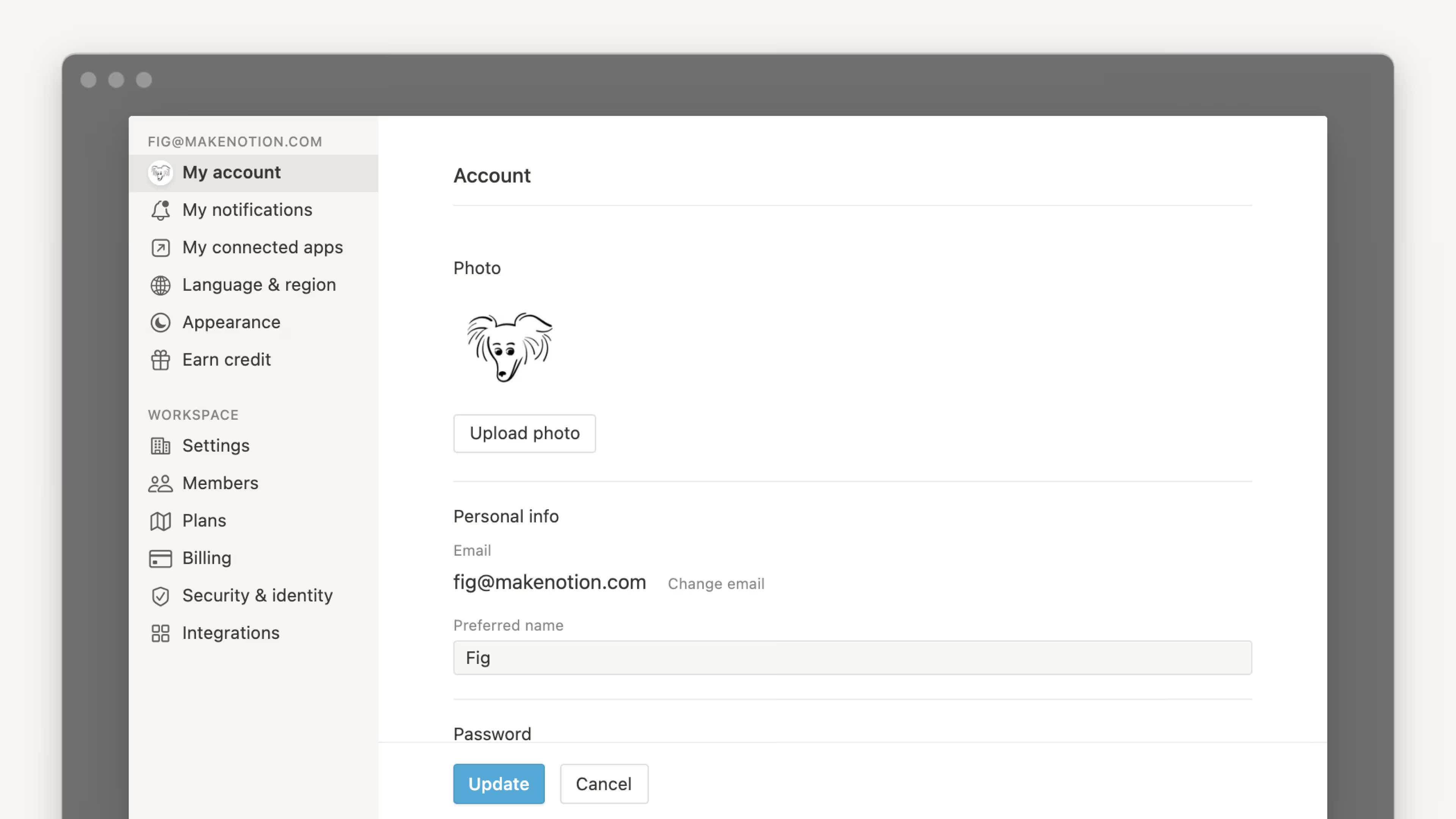
There are tons of account settings and preferences to adjust in Notion ⚙️
Zu den FAQsTo change your profile photo, you'll need to be using Notion for desktop or web and follow these steps:
Go to
Settingsin your sidebar →{your name}.Select your current photo or your initial above
Add photo.Choose the file you want to use from your device and click
Open.
To change your preferred name in Notion:
Go to
Settingsin your sidebar →{your name}.Under
Preferred name, enter the name you want to use.
Your primary email address is where account notifications are sent by default. You can have up to 5 email addresses on one Notion account.
To change your primary email address:
Go to
Settingsin your sidebar →{your name}.Under
Account security, clickManage emails.Click
Add emailand enter the new email address you'd like to use.A verification code will be sent to the new address — enter it in Notion to verify it.
Once verified, click the
•••menu next to the new email and selectMake primary.Optionally, remove your old email address by clicking the
•••menu next to it and selectingRemove.
With email aliases, you can now associate multiple email addresses with your Notion account. Any verified alias can be used to log in, receive shares, and be mentioned — all pointing to the same account identity.
If your desired email is already tied to another Notion account:
You'll need to delete that account first before adding the email as an alias. Log into the other account, go to Settings → {your name} → Delete my account, then return to your main account and add the email as an alias.
For Enterprise users:
Whether you can manage your own email aliases depends on your organization's policy. Your admin may have set aliases to: Disabled (not allowed), Only verified domains (only emails matching your company's verified domains), or Enabled (any email). Contact your workspace admin if you're unable to add an alias.
I tried changing my email address but got an error message saying: "A user with this email already exists."
If you'd like to change your account email to one that’s already tied to another Notion account, you'll need to delete that account first before adding the email as an alias. To do this:
Log into the account tied to your desired email address, then go to
Settings→{your name}→Delete my account.Then return to your main account and add the email as an alias.
Can I have multiple email addresses on my Notion account?
Yes, you can. See Secondary emails to learn more about using multiple email addresses for your Notion account.

Wenn du eine Fehlermeldung erhältst, wonach deine neue E-Mail-Adresse bereits für ein anderes Konto verwendet wird, musst du zuerst das mit dieser E-Mail-Adresse verknüpfte Konto löschen und es dann erneut versuchen.
If you want to log into Notion using a permanent password instead of temporary login codes:
Go to
Settingsin your sidebar →{your name}.Select
Set a password.Enter a password that meets the security requirements and confirm it. Passwords must be at least eight characters long, with at least three special characters, one letter, and one number.
If you want to change or remove your password:
Go to
Settingsin your sidebar →{your name}.Select
Change password.Enter a new password and select
Change password, or selectRemove password.

Hinweis: Teile dein Passwort niemals anderen Personen mit – auch nicht dem Notion-Support! Mitarbeitende des Notion-Supports werden dich unter keinen Umständen nach deinem Passwort fragen.
Sämtliche Passwörter werden auf unseren Servern verschlüsselt, so dass wir keinerlei Zugriff auf die Passwortdaten haben.
Reset your password
If you forgot your password, follow the instructions to reset it here →
Learn more about two-step verification here →
Learn more about passkeys here →

Mehr darüber, wie du dich bei Notion an- und abmeldest, erfährst du in diesem Artikel →
Learn more about deleting your account here →
Learn more about logging out of all your devices here →
To customize Notion's appearance on desktop:
Go to
Settingsin your sidebar →Preferences.Open the dropdown next to
Appearanceand select one of the following options:Use system settingto follow your system appearance setting.Lightto display light mode.Darkto display dark mode.
You can also turn dark mode on or off anytime with the shortcut
cmd/ctrl+shift+L.
To customize Notion's appearance on mobile:
Open the sidebar by tapping the
•••in the top corner.Tap
Settingsand scroll to theAppearancesection.Open the dropdown and select one of the following options:
Use system settingto follow your system appearance setting.Lightto display light mode.Darkto display dark mode.
Hinweis: Der Dunkelmodus wird in allen Workspaces aktiviert, in denen du mit deinem Konto angemeldet bist. Wenn du also zwischen ihnen wechselst, befinden sich alle im Dunkelmodus.
If you're on web and you want any links to Notion pages to open in your desktop app:
Go to
Settingsin your sidebar →Preferences.Toggle on
Open links in desktop app.
You'll need to have the desktop app already installed. You’ll also need to go to Notion in your desktop app and ensure that Open links in browser is turned off in your settings.
If Notion links aren't automatically opening in the desktop app
If links to Notion pages aren't automatically opening in the desktop app, try following these steps:
Open the link in your browser.
Click
•••at the top right of the page. Scroll to the bottom of the menu that appears and clickOpen in Mac app.
To change your display language:
Go to
Settingsin your sidebar →Preferences.Under
Language & Time, open the dropdown next toLanguage.Select your language.
Hinweis: In der Mobilversion richtet sich die Anzeigereihenfolge der Sprachen nach deinen Systemeinstellungen.
Calendars in Notion will use Sunday or Monday as the first day of the week, depending on your region. That includes the date picker for reminders and calendar databases. If you prefer, you can change this manually. To do this:
Go to
Settingsin your sidebar →Preferences.Under
Language & Time, toggle on or offStart week on Monday.
To change your time zone:
Go to
Settingsin your sidebar →Preferences.Under
Language & Time, set your time zone manually or turn onAutomatically update time zone.
If you’re using Notion’s desktop app, you can manage settings for the app by going to Settings in your sidebar → Preferences.
Open the dropdown next to
On startupto chooseContinue where you left off, which will open the tabs you had open right before you last closed the app. Alternatively, you can chooseYour default pageif you’d like to start with the same page every time.If you want to use Command Search, which allows you to quickly search in Notion while you’re in another app, turn on
Use Command Search. Once this setting is turned on, you can also turn onShow Notion in menu barso you can get to Notion from the top of your screen, as well as adjust theKeyboard shortcut for Command Search shortcutandNotion AI shortcut.If you want search to open whenever you create a new tab, toggle on
New Tab Search. This allows you to immediately search for and navigate to a specific page when you open a new tab. If this setting is toggled off, new tabs will display the default page specified in theDefault pagesetting.If you want any links to Notion pages to open in your web browser instead of the desktop app, toggle on
Open Notion links in browser. You’ll need to go to Notion in your browser and ensure thatOpen links in desktop appis turned off in your settings.If you set up links to open in the desktop app, your browser will open a new tab automatically redirect you to the desktop app every time you click on a link to a Notion page. To have these tabs automatically closed once you’re redirected to the desktop app, toggle on
Close redirecting browser tabs.
If you don’t want your account to be recorded in page analytics, you can opt out altogether or for specific pages.
To opt out of participating in analytics altogether:
Go to
Settingsin your sidebar →Preferences.Under
Privacy, open the dropdown next toShow my view historyand selectDon't record.
Learn more about page analytics here →
You can decide if users with your email address can see your name and profile picture when they invite you to a new workspace. To do so:
Go to
Settingsin your sidebar →Preferences.Under
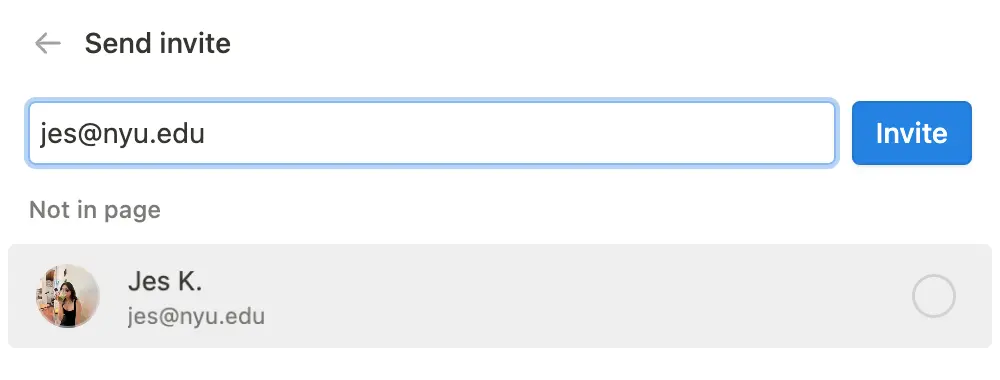
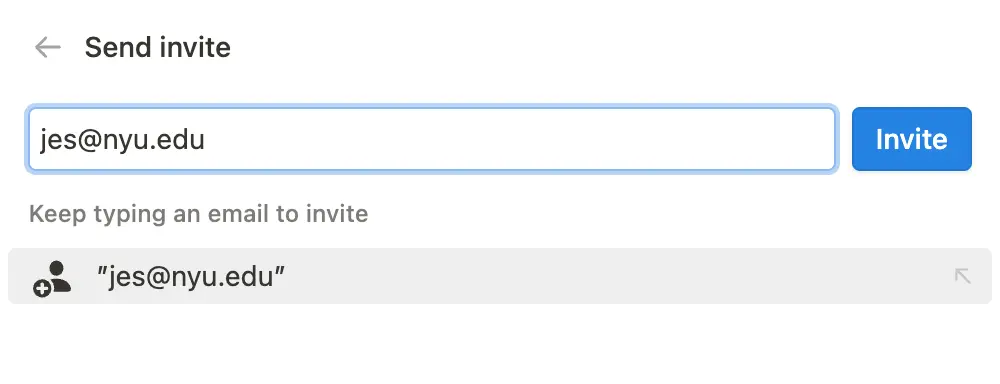
Privacy, findProfile discoverability. Turn this on to make your profile discoverable to people with your email address, or turn it off to hide your profile from people with your email address.
If you turn profile discoverability on, a user will see this when they invite you to a workspace or a page:
If you turn profile discoverability off, a user will see this when they invite you to a workspace or page:
Hinweis: Wenn du bereits Teil desselben Workspace bist wie der Benutzer, der dich einlädt, oder wenn du dem Workspace beigetreten bist, kann er dein Profil sehen.
FAQs
Ich habe mein Passwort vergessen. Was nun?
Ich habe mein Passwort vergessen. Was nun?
Wenn du dein Passwort vergessen hast, folge zum Zurücksetzen den Anweisungen hier →
Ich habe eine E-Mail zur Änderung meiner E-Mail-Adresse oder meines Passwortes erhalten. Das habe ich aber nicht getan!
Ich habe eine E-Mail zur Änderung meiner E-Mail-Adresse oder meines Passwortes erhalten. Das habe ich aber nicht getan!
Wenn du ohne Aufforderung eine E-Mail zur Änderung deines Passworts erhältst, solltest du dein Passwort so schnell wie möglich zurücksetzen. Folge dazu dieser Anleitung:
Öffne notion.so/login in deinem Internetbrowser.
Gehe zur Option
E-Mail-Adresse.Gib die mit deinem Notion-Konto verknüpfte E-Mail-Adresse in das vorgesehene Feld ein.
Klicke auf den
Passwort vergessen?Button und dann auf denLink zum Zurücksetzen sendenButton.Wir senden dir dann einen Link an deine E-Mail-Adresse. Wenn du diesen anklickst, wirst du in deinem Notion-Workspace zu den
Einstellungenweitergeleitet und dein Passwort wird zurückgesetzt.Bitte melde verdächtige Aktivitäten wie diese unserem Support-Team unter [email protected].
Beim Versuch, meine E-Mail-Adresse zu ändern, wird die Fehlermeldung „Ein Benutzer mit dieser E-Mail-Adresse ist bereits vorhanden“ angezeigt.
Beim Versuch, meine E-Mail-Adresse zu ändern, wird die Fehlermeldung „Ein Benutzer mit dieser E-Mail-Adresse ist bereits vorhanden“ angezeigt.
Wenn du eine E-Mail-Adresse verwenden möchtest, die bereits mit einem anderen Notion-Konto verknüpft ist, melde dich einfach mit dem Konto an, das derzeit mit der gewünschten E-Mail-Adresse verknüpft ist. Dann lösche dieses Konto, um die E-Mail-Adresse freizugeben. Das funktioniert so:
Logge dich in das Konto ein, das mit der gewünschten E-Mail-Adresse verknüpft ist, und gehe dann zu
Einstellungen→{dein Name}→Mein Konto löschen.Logge dich in das Konto ein, dessen E-Mail-Adresse du ändern möchtest, und gehe dann zu
Einstellungen→{dein Name}→E-Mail-Adresse ändern.
Was passiert, wenn ich etwas dauerhaft lösche? Kann ich es wiederherstellen?
Was passiert, wenn ich etwas dauerhaft lösche? Kann ich es wiederherstellen?
Wenn du versehentlich eine Seite, einen Workspace oder sogar dein Benutzerkonto gelöscht hast, können wir dir helfen. Unfälle passieren 😅 Sende uns einfach eine Nachricht in der App, indem du unten in deiner Seitenleiste auf? klickst, oder sende uns eine E-Mail an [email protected].
In unserer Datenbank legen wir Sicherheitskopien ab. So können wir bei Bedarf Snapshots deiner Inhalte aus den letzten 30 Tage wiederherstellen.